As part of our ongoing effort to meet the Web Content accessibility Guidelines (WCAG) 2.1 and 2.2 Level AAA, we've created British Sign Language (BSL) versions of our video and created BSL playlists in our TetraLogical YouTube channel.
In this post we explore our process for adding BSL to videos and share some tips.
Introduction
Sign language is a visual form of communication for people who are Deaf or hard of hearing. It uses hand, arm, body movements, and facial expressions to convey meaning and is often the native language for many people who are born Deaf or have been deaf since before they could speak.
There are different versions of sign language across different countries and regions, examples include, but are not limited to:
- British Sign Language (BSL)
- American Sign Language (ASL)
- Black American Sign Language (BASL)
- Auslan (Australian Sign Language)
- Chinese Sign Language (CSL or ZGS)
Along with captions and transcripts, sign language is a format that can be included with videos to make them more accessible.
Sign language can be easier to understand than written language, and it offers a richer experience than captions for some people because facial expressions are better at expressing emotions.
When watching videos, people may use a combination of sign language, lip-reading, and captions. What people use will depend on their preferences and situation.
The following browsing with speech recognition video includes the original video and a BSL version, both of which have captions. A transcript is also provided so people can consume the video according to their preferences.
Transcript
[The TetraLogical logo whooshes into view on a white background. The logo flashes and stops with a sonar-like 'ping'. It then magnifies and fades out.]
[A dark purple background appears with the TetraLogical logo faintly overlaid]
Browsing with speech recognition
Speech recognition software listens to human speech, transcribes it into text, and executes spoken commands that operate your computer or device.
As well as dictating text, filling out forms, and opening and closing applications, you can browse the web and completely control websites with voice commands.
[The TetraLogical homepage appears with a horizontal list of links for main navigation at the top, a heading, and the body of the page content below]
Core navigation verbally mirrors how you navigate with a keyboard. For example, rather than using keys on a keyboard, you say "Tab" to move focus to the next item, "Shift Tab" to move to the previous item, and "Press Enter" to activate a control.
[A purple button with the text "Skip to main content" appears. As the user interacts with the page, the visible focus indicator moves too]
[User voice] tab, tab, tab four times, press shift tab, press, shift tab, press enter.
[On the final command, the "Services" page opens. The page then fades back to the homepage]
To activate a link or button, you can say "Click" together with the text used in the link or button. For example, "Click Services" to activate a link labeled "Services".
[User voice] click services
[The "Services" pages opens as before]
If you just say "Click link", the software will highlight and number all links in the current page. You then select the link you want by saying the number.
[User voice] click link
[A series of six green numbers appear dotted throughout the page. These are attached to each separate link, such as the logo and each individual menu option]
[User voice] choose 3
[The visible focus moves to the "Services" menu option, which has the number three above it. This then opens the "Services" page
The homepage appears again, this time with gridlines across the entirety of the page, marking out six distinct areas]
In situations where a control lacks a visible text label, or where the visible text doesn't match the actual accessible name of the control in the underlying markup, people using speech recognition can use alternative approaches such as MouseGrid, which overlays a grid on the page.
[The user moves the mouse cursor which changes the size and location of the grid. As the user hones in on the menu options, the grid keeps resizing to display as a smaller, more precise area]
Each box has a number. By saying a number in a box, the grid focuses on that part of the page.
This is repeated until the button or link you want is focused.
[The bottom of the TetraLogical homepage is displayed in front of a bright pink background]
In this recording, we're using MouseGrid to set focus to a graphical control that lacks visible text.
[User voice] MouseGrid
[Lines appear across the screen marking out nine areas of equal size on screen. Each one is numbered]
[User voice] seven
[A new grid appears in the area that was previously marked as seven. This is much smaller and now focuses on the bottom right of the screen.]
[User voice] six
[Again, a new grid appears in the area that was previously marked as six]
[User voice] six
[A very small grid is now displayed. The majority of the grid is over a button with an "email" icon displayed]
[User voice] click
These are some of the high level details about speech recognition, and common strategies that people browsing with speech recognition use.
[The screen fades to white and the TetraLogical logo appears again]
To find out more about accessibility visit tetralogical.com.
Creating sign language video
Along with audio description, captions, and text transcripts, sign language should be at the heart of an inclusive approach to video production. Unless you have the resources in-house, it is generally best to outsource this to a company that specialises in sign language content creation.
To provide the best possible experience, consider the presentation, synchronisation, accuracy, and positioning of the signer. Whether you are creating signed versions yourself, or outsourcing it, here are some tips for each.
Presentation
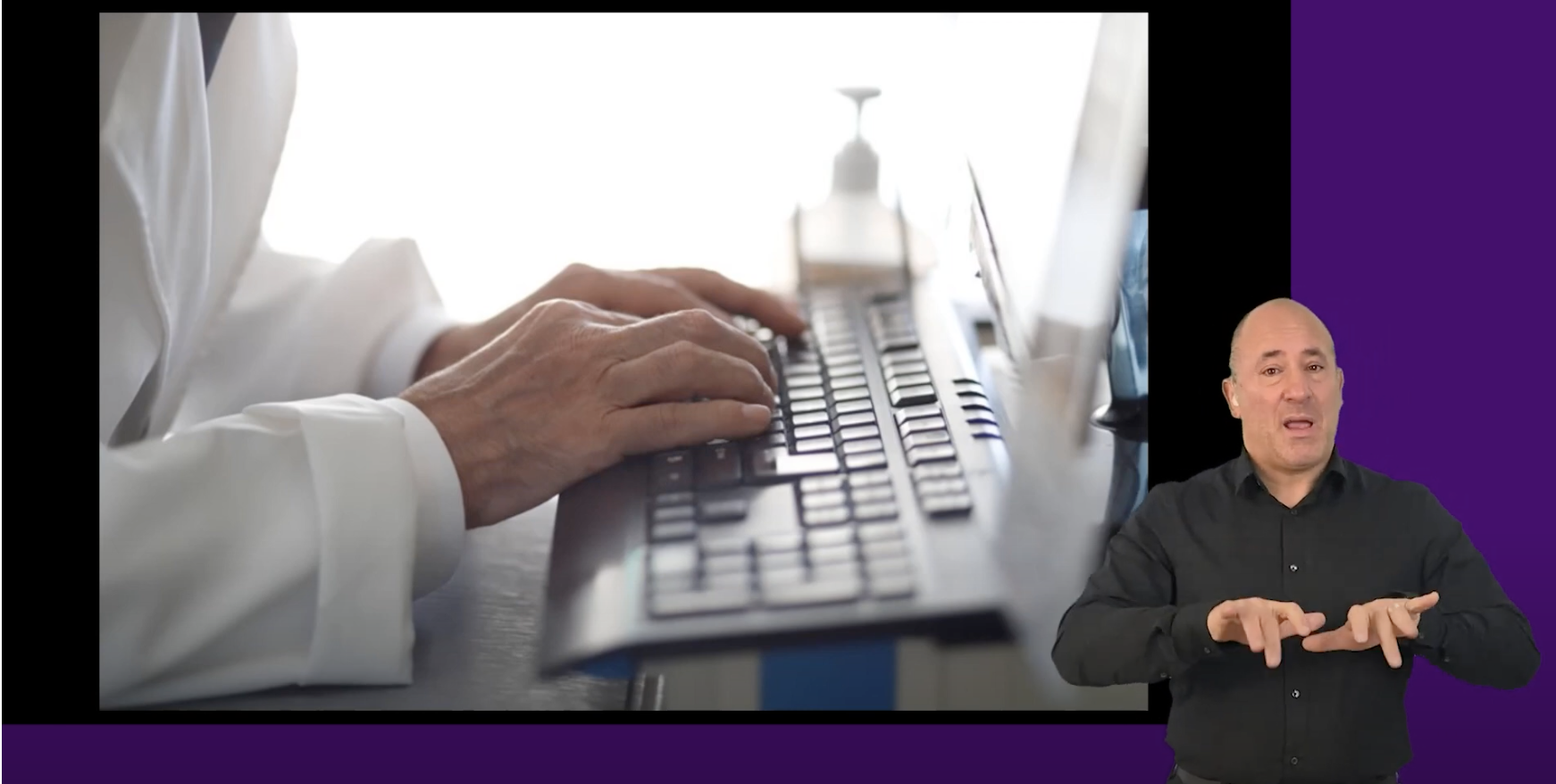
The background and the signer’s clothing should be solid colours that contrast with their skin tone. There should be good lighting, so it is easy to see the signer's hands and face.
Synchronisation
The person who is signing should follow the same pace as the speech and sound. This helps people who are both lip-reading and watching the sign language interpreter.
Synchronisation also applies to off-screen speakers.
Accuracy
Sign language should provide a comparable experience for people and reflect the spoken text as closely as possible, for example:
- Use verbatim text rather than edited text; the viewer should have as much access to the soundtrack as possible
- Use the same style as the speaker; for example, if the speaker is using slang, so should the signer
Positioning
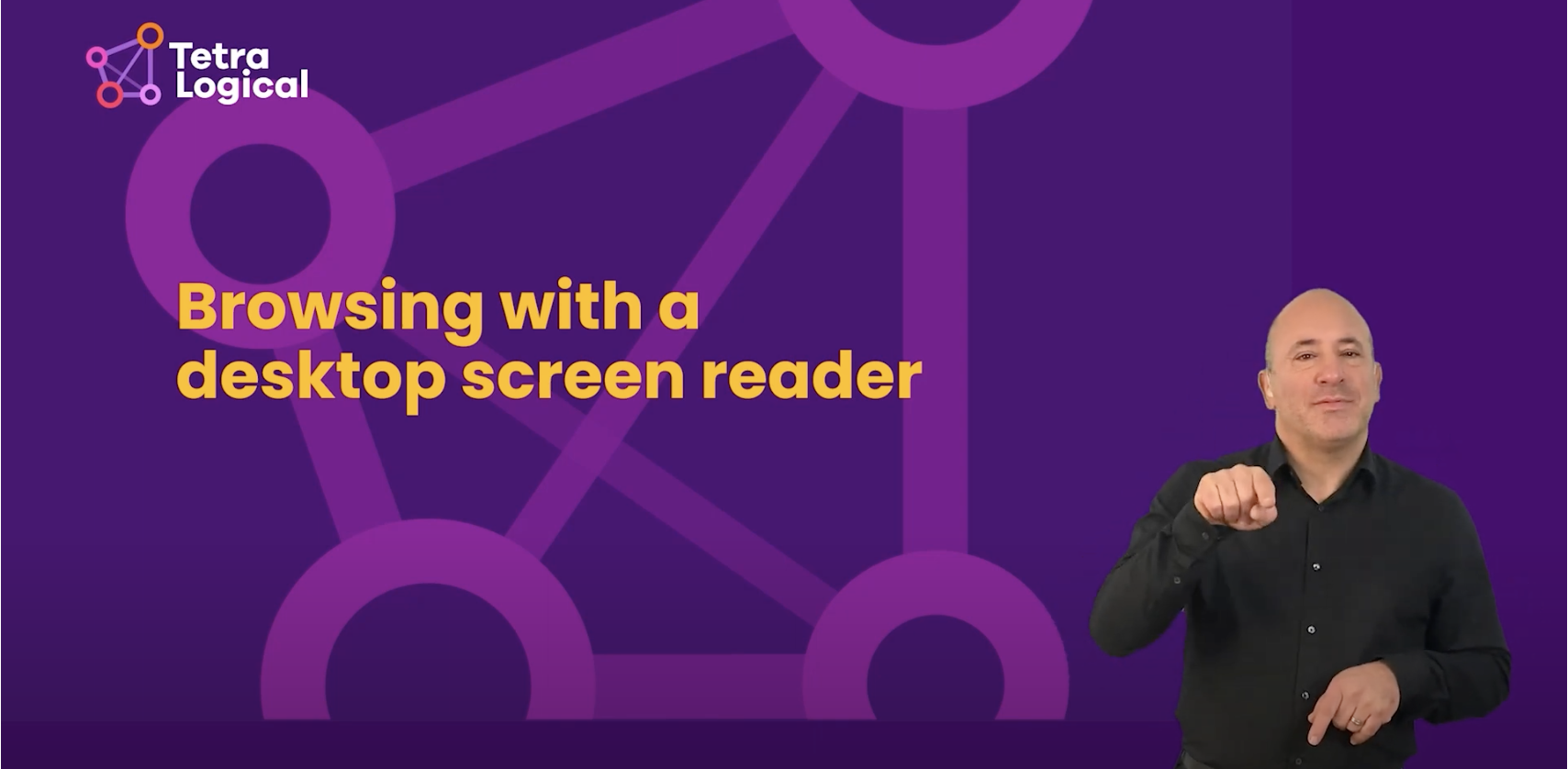
A sign language interpreter should be positioned so you can clearly see the video contents as well as the signer, for example on the bottom right of the screen. The signer should be large enough to see from the waist upwards.
If there is text or a news ticker in the same space as the signer, the signer can be moved up, so the text is not obscured.
Linking to sign language versions
Make sure sign language versions of video are easy to find, for example provide links to sign language versions via:
- Category menus and pages
- Listings pages such as search results
- The page where the video is embedded

Testing sign language
When testing videos for sign language check:
- Sign language is accurate, for example it matches the audio track
- Sign language is synchronised with the audio track
Ideally check this with people who use sign language every day, as they can comment on the quality and delivery of the sign language.
Meeting the Web Content Accessibility Guidelines
Support for sign language in the Web Content Accessibility Guidelines for both WCAG 2.1 and WCAG 2.2 is Level AAA and required for pre-recorded video:
- WCAG 2.1, 1.2.6 Sign Language (Prerecorded) Level AAA
- WCAG 2.2, 1.2.6 Sign Language (Prerecorded) Level AAA
Meeting the Inclusive Design Principles
Using the Inclusive Design Principles as a framework, we can create more usable video for people who use sign language with the following four principles.
Provide a comparable experience
Ensure your interface provides a comparable experience for all so people can accomplish tasks in a way that suits their needs without undermining the quality of the content.
By adding accurate, synchronised sign language, you provide a richer experience that conveys sentiment and emotion better than captions or a transcript.
Consider situation
People use your interface in different situations. Make sure your interface delivers a valuable experience to people regardless of their circumstances.
By adding a sign language version, you include people who prefer visual language to reading captions or transcripts, or have problems reading due to low literacy or low vision.
Offer choice
Consider providing different ways for people to complete tasks, especially those that are complex or non standard.
By adding a sign language version, you give people a choice between captions, text, and sign language.
Add value
Consider the value of features and how they improve the experience for different users.
By adding a sign language version, you greatly enhance the accessible user experience for many people who are Deaf or hard of hearing whose first language is sign language.
BSL videos
Our BSL videos are linked from the TetraLogical website and available YouTube channel:
- Browsing with assistive technology videos
- Quick accessibility tests videos
- TetraLogical YouTube channel
Next steps
For more information about accessible multimedia, read an inclusive approach to video productionor browse our training courses and training programmes.


