Claude Code has become one of the most-used tools in my dev workflow, whether I’m working from the terminal or the VS Code plugin.
I’ve been using it daily for over a year, and in that time I’ve picked up a handful of practices that massively improved the quality of what it produces. Claude now writes code that follows best practices, uses cleaner architecture, is accessible, and is organized cleanly into reusable components, all without constant back-and-forth. It looks like it was actually planned and maintained, not AI slop.
In this blog post, I am going to share these best practices with you. You can also view this in a video format above if you prefer.
Before vs after: How prompting impacts code quality
Early on, I used to give Claude simple prompts, and despite my best efforts, the apps it generated often felt rough around the edges. The UI was buggy, and the resulting code was difficult to maintain.
Here’s an example of a prompt I would write and the app it generated:
Build a React component that fetches and displays a list of all my videos from https://www.youtube.com/@shrutikapoor08
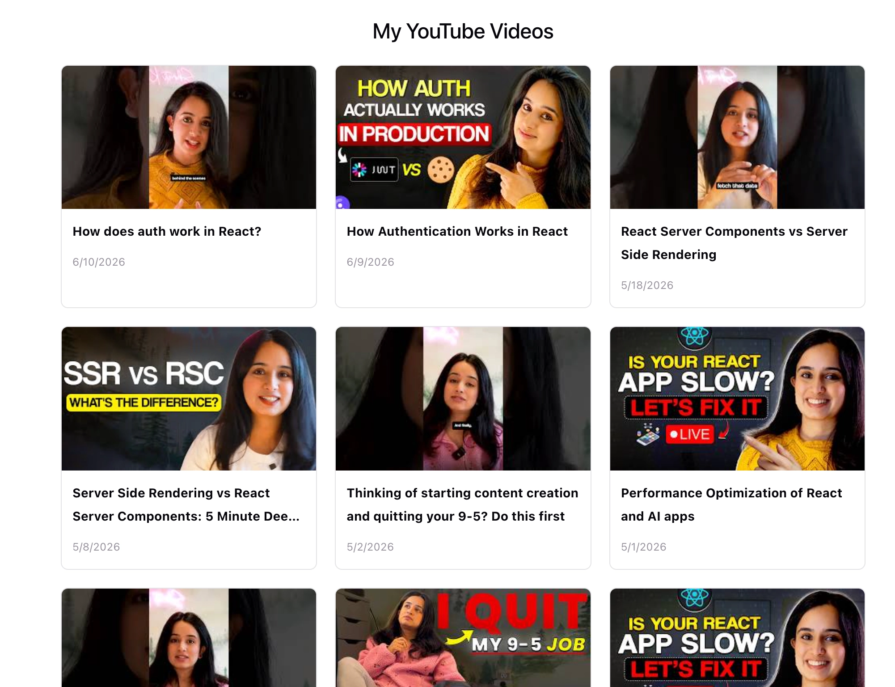
After a year of learning how to use Claude Code more effectively, refining my prompts, and adopting a set of best practices, the quality of the apps it generates has improved dramatically. They not only look far more polished, but the underlying code is also cleaner, more maintainable, and easier to build upon.
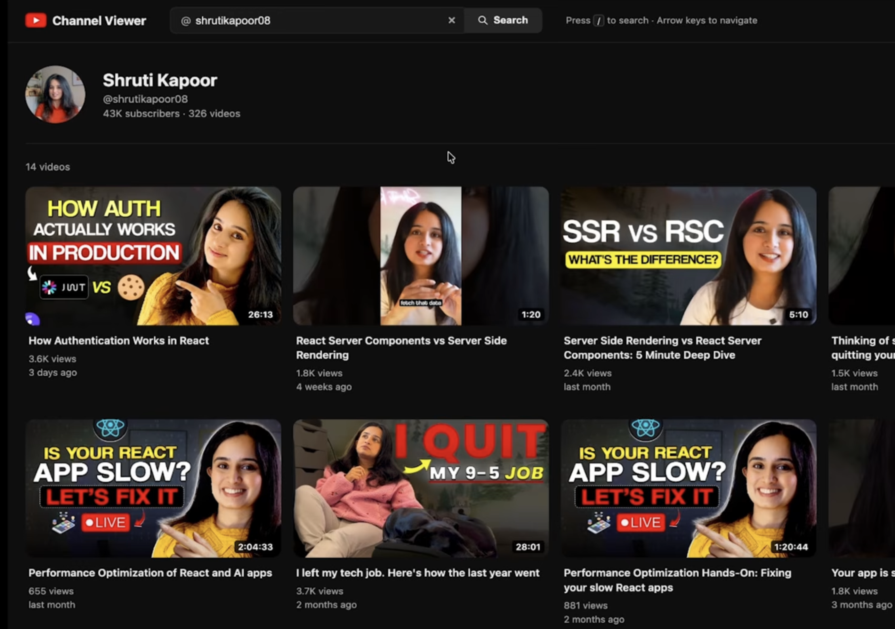
So, here are the 5 best practices I have been following:
Best practice 1: Gather requirements in plan mode before coding
How does a good developer approach a new feature? Instead of jumping straight into implementation, they gather requirements, plan out the project details, write down assumptions, figure out open questions, chart out the technical specifications, make a plan, and design the architecture. Only then do they start implementing. The same principle applies when building with Claude Code.
When you hand Claude a simple prompt, such as Build a React component that fetches and displays a list of all my videos from https://www.youtube.com/@shrutikapoor08, Claude does its best guess based on general training to understand technical requirements and feature details. It doesn’t know your team’s best practices, the tech stack you are using, or your coding conventions. The result is often that the code looks fine on the surface, but has problems underneath – duplicate code, poor architectural decisions, non-performant coding practices, and unmaintainable components.
Tip: Use the highest model available for plan mode, and then switch to a lower model for the actual implementation to optimize token usage.
To fix this, switch to Plan mode (Shift+Tab) and use the highest capability model to come up with a plan before implementing.
When using plan mode, walk Claude through:
- What features need to be developed, and what each feature should do
- Which libraries you want it to use, and your preferred tech stack
- Any constraints it should know about
- Any best practices you want it to follow
- Any assumptions
Prompt before:
Build a React component that fetches and displays a list of all my videos from https://www.youtube.com/@shrutikapoor08
Prompt after:
Build a YouTube channel viewer app in React.

## Tech Stack
- React with TypeScript
- TanStack Query for all data fetching and caching
- YouTube Data API v3

## Architecture First
Before writing any component code:
1. Define the data model (video object shape, pagination cursor, cache keys)
2. Map out the component tree
3. Identify all async states: loading, success, empty, error, rate-limited
4. Define the query key strategy for deduplication and cache invalidation

## Features

**Channel Search**
- Search bar accepts a YouTube username or channel handle (e.g. @shrutikapoor08)
- Default to @shrutikapoor08 on load

**Video Grid**
- Display videos in a responsive grid that matches YouTube's layout
- Each card shows: thumbnail, title, view count, published date, duration
- Filter out: Shorts (duration < 60s), duplicate video IDs

**Infinite Scroll**
- Use TanStack Query's `useInfiniteQuery` with YouTube's `pageToken` cursor
- Trigger next page fetch when the user scrolls within 300px of the bottom
- Show a loading skeleton on initial load and a spinner at the bottom during pagination

**Caching**
- Cache responses by channel ID + page token
- Do not refetch on window focus or component remount
- staleTime: 10 minutes
This generates a plan like this:
# YouTube videos component — infinite scroll, keyboard nav, dedupe

## Context

The request: a React component that fetches and displays **all** videos from
https://www.youtube.com/@shrutikapoor08, with three added requirements:

1. Keyboard accessible — arrow keys navigate between video cards
2. Infinite scrolling
3. No repeated videos

The Vite + React 19 app already has `src/YouTubeVideos.jsx` mounted in `src/App.jsx`. A local
commit `7deaaaa` on branch `claude/serene-planck-43wkig` (not yet pushed; first push got a 403)
reworked it to eagerly fetch every page of the uploads playlist. That eager loop will now be
replaced with on-demand infinite scrolling, and keyboard navigation + dedup added on top.

## Design

### 1. Infinite scrolling (replaces eager fetch-all)
- Resolve the channel's uploads playlist ID once (`channels?forHandle=shrutikapoor08`), cache
  it in a ref.
- Fetch one `playlistItems` page (24 items) on mount. Place a sentinel `<div>` after the grid,
  watched by an `IntersectionObserver`; when it becomes visible and a `nextPageToken` exists,
  fetch the next page and append.
- An in-flight ref guard prevents overlapping fetches (also covers StrictMode double-effects).
- Status line under the grid (`aria-live="polite"`): "Loading more…" while fetching,
  "All N videos loaded" once `nextPageToken` is exhausted — so every video is reachable.

### 2. No duplicates
- Keep a `Set` of seen `videoId`s in a ref; filter each incoming page before appending.
  Card `key` = `videoId`. Also skip items without a `videoId` (private/deleted videos).

### 3. Keyboard navigation (roving tabindex, WAI-ARIA grid-style)
- One `keydown` handler on the grid container:
  - **ArrowLeft / ArrowRight**: previous / next card
  - **ArrowUp / ArrowDown**: move by one row — column count computed by counting cards that
    share `offsetTop` with the first card (works with the responsive `auto-fill` grid)
  - **Home / End**: first / last loaded card
- Only the active card has `tabIndex={0}`; all others `-1`, so Tab enters/leaves the grid in
  one stop. Arrow keys call `.focus()` on the new card (cards stay native `<a>` links, Enter
  opens the video).
- Synergy with infinite scroll: focusing the last card scrolls it into view, which brings the
  sentinel into view and loads the next page — keyboard users can reach all videos too.

### CSS (`src/YouTubeVideos.css`)
- Visible `:focus-visible` outline on `.yt-card`; styles for the status line. Keep the
  existing grid/card look.

## Steps

1. Discard incidental lockfile churn: `git checkout -- package-lock.json` (only `"peer": true`
   metadata removed by this sandbox's npm; no dependency changed).
2. Rework `src/YouTubeVideos.jsx` and `src/YouTubeVideos.css` per the design above
   (amends/extends the work already in local commit `7deaaaa`).
3. Add `.env` to `.gitignore` — it is not ignored today, and repo history shows an API key was
   committed then deleted (`3f04f15 "Delete .env"`).
4. Commit on `claude/serene-planck-43wkig` and push (`git push -u origin …`). If the earlier
   403 recurs and isn't network-shaped, fall back to the GitHub MCP `push_files` tool, then
   `git fetch` + `git reset --hard origin/claude/serene-planck-43wkig` to realign local.
5. No PR (not requested).

## User action needed at runtime
- Create `.env` with `VITE_YOUTUBE_API_KEY=<YouTube Data API v3 key>`, then `npm run dev`.
  Without it the component renders an explanatory error.
- Security note: the key deleted in `3f04f15` is still in git history — rotate it if active,
  and restrict any client-side key (HTTP-referrer + API restrictions), since Vite bundles
  expose it publicly.

## Verification
- `npx eslint src/` and `npm run build` must pass.
- With a real key: initial page renders; scrolling to the bottom keeps loading pages until
  "All N videos loaded"; no duplicate cards; Tab focuses the grid once; arrows move focus in
  all four directions; Enter opens the focused video.
- Without a key, the missing-key message renders (verifiable in this sandbox via `npm run dev`).
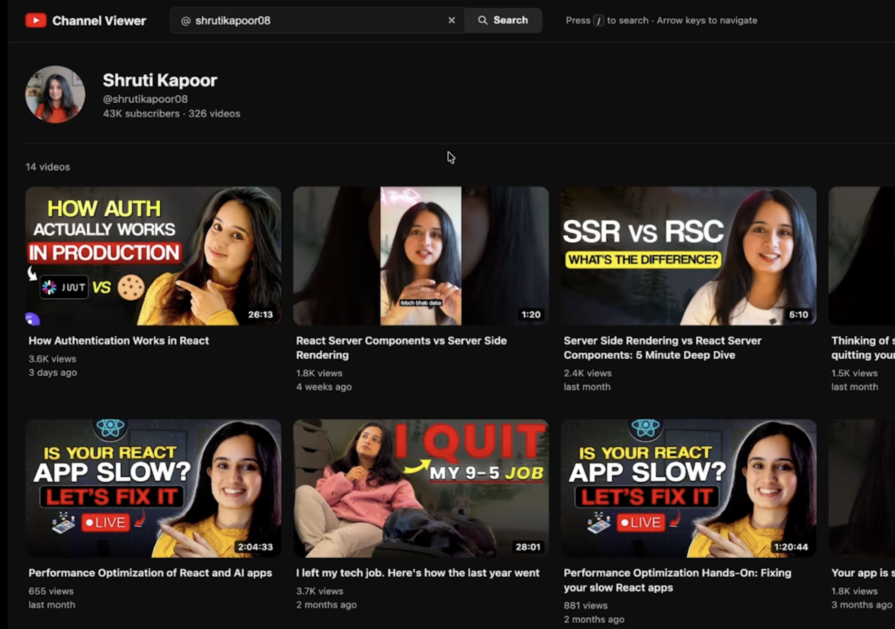
Once you accept the plan and let Claude implement it, the resulting component is noticeably cleaner. It has a proper search bar, a video feed, and data fetching handled through TanStack Query instead of scattered useEffect calls, exactly as specified in the plan.
Best practice 2: Provide persistent context with a CLAUDE.md file
Claude has no memory between sessions, so it starts from a blank slate every time. This means that if you provided information about your best practices, your coding standards, and your architectural decisions in one session, it doesn’t get carried over when you restart Claude. This can be extremely frustrating. This is why you use CLAUDE.md to provide memory between sessions.
This file lives in your project root. Claude reads it automatically at the start of every session. Here’s what I put in my CLAUDE.md:
- Common bash commands
- Tech Stack
- Code style rules: no default exports, named functions, no inline styles
- Architectural decisions: why we chose X over Y
- Rules: No committing secrets, no skipping accessibility attributes
CLAUDE.md
Common Bash Commands
npm run dev          # start dev server (Vite)
npm run build        # typecheck + production build
npm run typecheck    # run tsc --noEmit
npm run lint         # run ESLint
npm run test         # run Vitest test suite
npm run preview      # preview production build locally
Stack
- React 19 — UI library
- TypeScript — strict type safety throughout
- Vite — dev server and bundler (not Next.js App Router — this is a Vite SPA)
- TanStack Query v5 — server state, caching, and data fetching
- CSS Modules / plain CSS — per-component
.cssfiles colocated with components
Project Structure
src/
  api/          # YouTube API client and raw API types
  components/   # UI components, each with a colocated .css file
  hooks/        # custom React hooks (data fetching via TanStack Query)
  lib/          # pure utility functions (formatting, duration, etc.)
  types.ts      # shared domain types
Code Style Rules
- No default exports — always use named exports
- Named function declarations — prefer
function Foo()overconst Foo = () => - No inline styles — use colocated
.cssfiles or CSS classes; neverstyle={{ ... }} - TypeScript strict — no
any, no type assertions without justification - One component per file — file name matches the exported component name
Architectural Decisions
- TanStack Query over plain
useEffect+useState— eliminates manual loading/error state, provides caching, deduplication, and background refetching out of the box - Custom hooks over fetching in components —
useChannelVideos,useChannel,useInfiniteScrollkeep components declarative and make data-fetching logic independently testable - Colocated CSS files over a global stylesheet — avoids specificity conflicts as the component tree grows; each component owns its styles
- Vite over CRA — faster HMR, native ESM, simpler config
Rules
- No secrets in commits — never commit API keys, tokens, or
.envfiles; use environment variables via.env.local(gitignored) - No skipping accessibility attributes — all interactive elements must have
aria-label,alt, or equivalent; all images requirealttext; no accessibility attribute may be omitted to save time
You can find this in the GitHub repo.
Make sure you save this Claude.md in the right location – ./claude/CLAUDE.md, so it is picked up as memory for future sessions.
Best practice 3: Enhance context using Skills and MCP servers
Claude has been trained on general data. To enhance the data that Claude has access to, you can use skills and MCP (Model Context Protocol) servers. Skills give Claude specialized domain knowledge and best practices, while MCP servers give it tools to interact with other systems. Together, they help Claude follow best practices and team-specific requirements beyond its general training.
Skills
Skills are a collection of best practices that you load into Claude to guide its code generation. For frontend work, I like to use the following skills:
- React best practices by Vercel: This is Vercel’s performance best practices published as a Claude skill. It bundles dozens of rules for eliminating network waterfalls, cutting bundle size, and avoiding unnecessary re-renders, each with before/after code examples, so Claude applies performance best practices automatically instead of guessing
- Fallow: A codebase intelligence skill for JavaScript/TypeScript. It teaches Claude to spot unused code, circular dependencies, duplication, and complexity hotspots, so it can safely clean up or refactor instead of just adding on top of what’s already there
To install a skill, you can get it from its source repo:
npx skills add https://github.com/vercel-labs/agent-skills --skill vercel-react-best-practices
You can check which skills are installed with the command:/skills
MCP (Model Context Protocol)
MCP servers connect Claude to external tools and services so it can pull in real project context instead of just generating from general knowledge.
- CodeRabbit MCP: CodeRabbit MCP is a code-review tool that analyzes pull requests for security issues and code quality, and suggests refactors. It’s particularly useful for catching problems before a merge
- Figma MCP: This is a design-tool MCP server that can convert a design file directly into high-fidelity UI
With skills and MCP servers in place, Claude tends to create much higher-quality code and follows industry-standard best practices, for example, keeping the same code style, hooks usage, and building accessible and maintainable components.
Best practice 4: Manage the context window to prevent memory drift
Context is key in today’s development with coding agents, especially as you work on bigger chunks of work. The longer a session runs, the more of the context window gets used up, and the output quality tends to drop. Therefore, managing context, especially as you do more and more work in a single session, becomes more important.
What is the context window in Claude Code?
Context is all the information Claude holds in its working memory during a session, such as your instructions, the files it has read, its own responses, responses from tools, and any other information loaded into the conversation. It’s finite and measured in tokens.
Once a session’s context window runs out, the output quality degrades within that session. Claude starts losing track of earlier decisions. Therefore, it is important to manage context during a session.
3 ways to manage context during a coding session
There are three ways of managing context in a session:
/clear: starts a fresh context. You can use this when you are switching tasks, such as building a different feature, that doesn’t need memory from the previous task
/compact: summarizes the entire conversation and uses that summary as the seed for the next context window. Use this when you want continuity in the memory, but you are running out of context
Subagents: this is an underused one. When you need Claude to do research or read a large set of files, spin that off into a subagent rather than loading it all into your main session. It keeps your working context clean. Use this when you want to write tests or run code reviews. You can run /agents to create subagents in a session
Best practice 5: Use hooks in settings.json to enforce strict rules
An interesting thing I recently learnt is that Claude.md is advisory. It is only followed 80% of the time. If you want something to happen every time, put it in a hook instead of Claude.md
Hooks are shell commands that run automatically. They live in Claude’s local settings file .claude/settings.json. They are deterministic and cannot be skipped.
Some examples that should be hooks:
- Prettier on every file save
- TypeScript type check after every edit
- ESLint on changed files
There are PreToolUse hooks and PostToolUse hooks.
Here’s an example of each:
1. PreToolUse: Block destructive commands with PreToolUse hooks
{
  "hooks": {
    "PreToolUse": [
      {
        "matcher": "Bash",
        "hooks": [
          {
            "type": "command",
            "command": "jq -r '.tool_input.command' | grep -qE 'rm -rf|drop table|truncate' && { echo 'BLOCKED' >&2; exit 2; } || exit 0"
          }
        ]
      }
    ]
  }
}
2. PostToolUse: Auto-format your code with a formatter with a PostToolUse hook every time Claude edits a file
{
  "hooks": {
    "PostToolUse": [
      {
        "matcher": "Edit|Write",
        "hooks": [
          {
            "type": "command",
            "command": "npx prettier --write \\\\"$CLAUDE_FILE_PATH\\\\" 2>/dev/null || true"
          }
        ]
      }
    ]
  }
}
These run automatically after every edit, so your files stay both formatted and type-safe by default. You can also use pre-tool-use hooks to add guardrails like blocking destructive database operations or preventing edits to .env files.
Conclusion
Claude Code is a great coding agent, and with these best practices, you can notice a considerable difference between a rough first draft app and a polished, accessible, well-architected app.
The post How I maximize my daily output with Claude Code appeared first on LogRocket Blog.


