Agents keep getting better at more than drafting code. Teams already use them to move work through review, repair pipelines, and push changes toward merge. That speed only helps if every change is based on the software lifecycle context that lives in a unified platform and still passes the same gates your organization trusts. Without it, context, controls, and evidence fragment across people and tools into a shadow software factory.
Identity, policy, CI pipelines, security, approvals, and audits have to travel with the change from plan through merge and into production. A local harness alone does not hold that full picture. Your coding harness and GitLab Duo Agent Platform are built to work in tandem, so coding agents can move quickly while GitLab certifies their work on the way to production.
Software teams get to use different coding tools and agents they prefer, while their GitLab instance makes sure that every change is safe to ship. GitLab stays cloud-neutral, model-neutral, and agent-neutral, so you keep the harnesses, models, and deployment path that fit your organization.
Let us show you how to configure your agentic engineering environment to drive greater automation throughout your workflow. You stay in the harness you already use and connect to GitLab Duo Agent Platform once with a skill. Longer, repository-aware workflows run on GitLab, and every merge request still hits the same reviews, pipelines, scans, and approval policies.
In this article, we will focus on Claude Code as the local harness because that’s what we see most of our customers using but this same flow can apply to the local harness of your choosing, including Duo CLI.
How to configure your agentic engineering environment
If you already do most of your coding in a local harness, keep working there and wire it to GitLab Duo Agent Platform. From the terminal, you can direct lifecycle work to agentic workflows that run inside GitLab:
- Picking up an issue and opening a merge request
- Reviewing every MR as it lands
- Resolving merge conflicts
- Repairing a pipeline that just failed
- With GitLab Ultimate, triaging and fixing security findings once code lands
Claude Code, Codex, Cursor, OpenCode, and others become the place from where you direct that work.
Part 1 is the setup:
Install the GitLab Duo setup skill, ask Claude Code to run it, and it sets up your whole top-level group with the necessary settings, the flows, an automation in every project, and the MCP connection.
Part 2 walks through four workflows:
You can try them as soon as the setup is done, each driven from Claude Code:
- Find an issue assigned to you and hand it to the Developer flow.
- Get automated code reviews on your merge requests, act on the findings without leaving your harness, and resolve any conflicts that pop up.
- Use an automation to fix a failed pipeline.
- On Ultimate, triage and fix security findings with the security flows.
When you want an even tighter loop:
The MR followup skill guides your local harness through the steps above even faster. The skill helps local agents monitor progress on the repo-side and take actions on your behalf to speed things along.
What you get from the combined path:
- Move faster: Automatic review, pipeline repair, and (on Ultimate) security triage keep changes moving without leaving your harness.
- Build trust: The same engineering and security standards apply to every MR, with oversight and an audit trail in GitLab.
- Reduce complexity: Automate the handoff between your harness and GitLab so lifecycle work shares one context, one set of gates, and one audit trail.
What you need before you start:
- A GitLab.com top-level group with GitLab Credits (Premium and Ultimate groups get access to promotional free credits each month for each user). The security workflow in Use Case 4 requires Ultimate licensing for your GitLab instance.
- A project in that group with a pipeline, a few open issues, and an open merge request or two, so the workflows have something to act on.
- The Owner role on the top-level group, so the skill can set up the whole group. If you're a Maintainer on the project but not a group owner, the skill sets up just that project and lists what to ask your Owner.
- Claude Code installed and signed in, plus git and the GitLab CLI (glab, signed in with
glab auth login), which the skill uses to read and change settings.
Part 1: Guided setup with a skill
The GitLab Duo setup skill accelerates the connection from inside your harness. You install the skill once, ask Claude Code to set up GitLab Duo. The skill sets up your group as it turns on group-wide Duo Agent Platform workflows, creates the Fix CI/CD Pipeline automation where needed, connects to GitLab MCP server, and reports anything left for you to finish.
Install the skill
git clone https://gitlab.com/gitlab-da/projects/agentic-eng-config.git

cp -R agentic-eng-config/skills/gitlab-duo-setup ~/.claude/skills/

cp -R agentic-eng-config/skills/gitlab-mr-followup ~/.claude/skills/
Then Claude Code picks it up in the running session. If it isn't listed, restart Claude Code. You can add the skill to .claude/skills/ inside the repo so teammates can use it too.
Run the skill
In your project directory, start Claude Code and invoke the skill with a slash command:
/gitlab-duo-setup
Note: Different harnesses can have a different syntax for invoking skills.
What happens
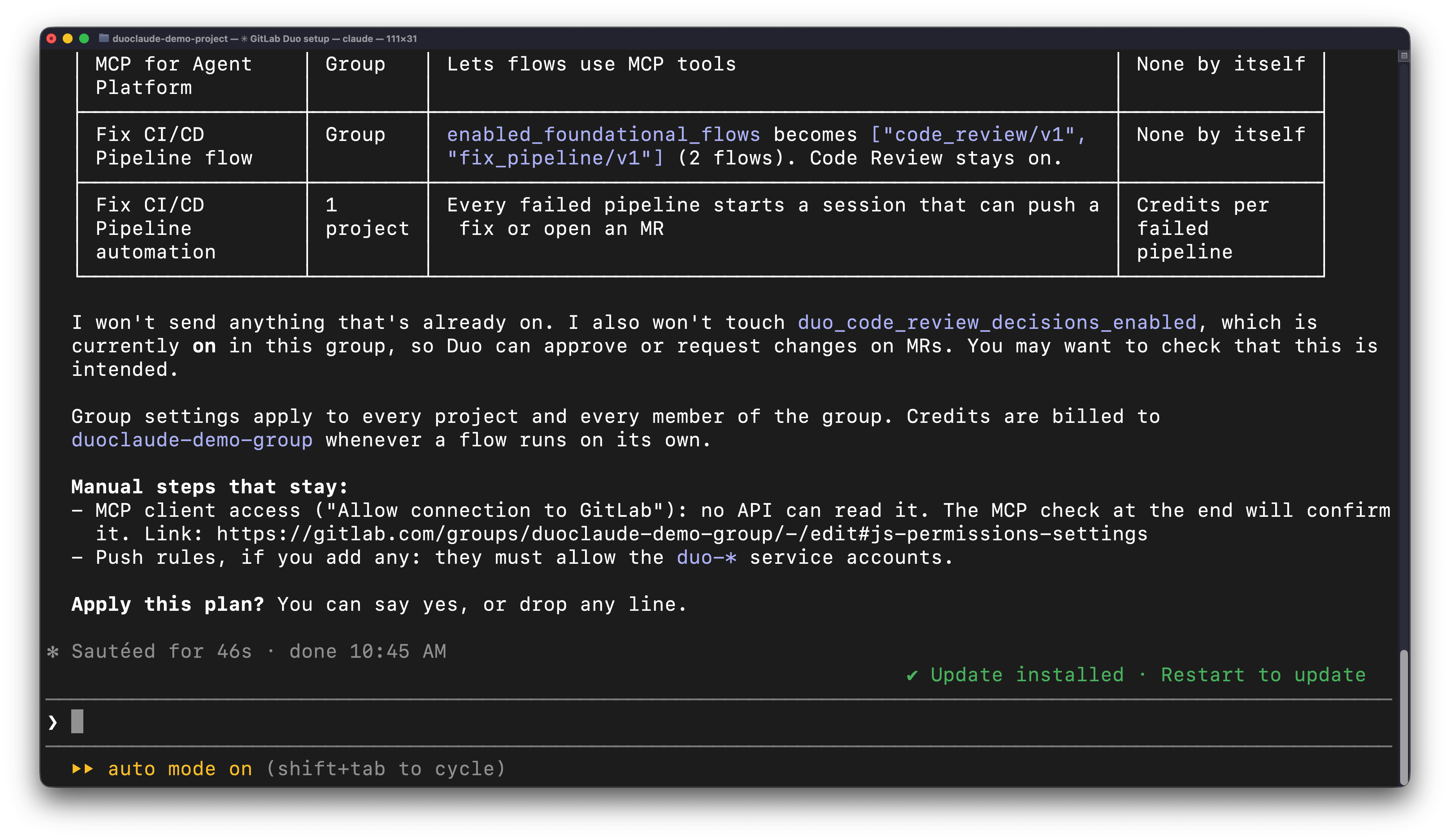
Before it changes anything, the skill reads your top-level group and its projects and shows you one plan: every change and what it covers (the groups or projects). Group changes reach every downstream project and every member, and the plan says so. It waits for your yes, and you can drop any line. Then it:
- Turns on GitLab Duo Agent Platform and flow execution for the group, and adds the Code Review, Duo Developer, and Fix CI/CD Pipeline flows to the group's flows. Flows you already have stay on.
- Turns on automatic code review for the group, which carries down to every project.
- Creates an automation in every project with CI/CD that runs Fix CI/CD Pipeline when a pipeline fails. Projects that already have one are skipped, so running the skill twice is safe.
- Adds the GitLab MCP server to Claude Code, user-level or project-level as you prefer, and walks you through signing in in the browser.
- Verifies by calling
list_duo_agents_and_flows. A successful call proves the sign-in worked, and the flows it returns prove the settings took. - On Ultimate, asks one optional question: Do you also want GitLab to triage and fix security findings? Say "yes" and Use Case 4 will cover what gets turned on. Say "no" and the setup is done.
- Ends with a short report and links for anything it couldn't do. Blockers may be runners, if a project has none that can run flows, or push rules, if your group enforces them.
Why use a skill for setup
A skill sets things up in the same place you already direct agent work. You stay in your preferred coding harness, approve a plan, and wire Duo Agent Platform for group-wide automation without breaking out of that loop.
It's also harness-neutral by design (the repo's AGENTS.md requires it), so the same skill works whether your team is on Claude Code today and something else next quarter.
If the GitLab tools don't show up
Run /mcp and check that GitLab shows as connected. Connected but no tools? Restart Claude Code; new servers load at session start.
A 403 when you sign in usually means MCP client access is off for your top-level group: A group Owner turns on Allow connection to GitLab under the group's Settings > General > Permissions and group features. If two GitLab entries, user and project scope, show duplicate tools, keep one.
Part 2: Four workflows, all run from your terminal
With the GitLab MCP server connected in Part 1, Claude Code can now find your issues, start a flow, read review threads and pipeline status, and reply on a thread over that single OAuth connection. Server instructions help Claude Code propose the right agentic workflow within Duo Agent Platform, and each call comes with an AI audit event for your platform team.
The agent reads issues and merge request context through these tools, allowing the coding harness to access GitLab artifacts you trust. Context then builds in layers: local files in the harness, then issue and MR context over MCP, and finally Duo Agent Platform flows with full repo context and your gates.
Use Case 1: Hand an issue to the Developer flow
The first thing most people want from an agent is simple: Take the issue I was assigned this morning and come back with a merge request.
GitLab automations allow work items to be automatically handled by an agent through events: issue creation, assignment or mentions of an agent, status changes, and more. If you have the GitLab MCP connection in place, you can manage that work from the terminal as well. Either way, once something is assigned to an agent in GitLab Duo Agent Platform, the work is executed within your GitLab instance so you can keep working on other things.
Find the work
In Claude Code, ask something like:
What issues are assigned to me in <group/project>? Summarize each in a line.
Claude calls the GitLab MCP server's work item tools, filters your assignments, and gives you the list. You pick one. If the issue is thin, this is also where you'd ask Claude to read the linked files or recent commits through the repository tools so you can sharpen the description before handing it off; a clearer goal produces a better MR.
Hand it off
Ask Claude to assign the Developer flow to an issue.
Can you pick up Issue 1 and assign it to the Developer flow in GitLab?
Claude calls the server's Start Duo session tool with the project, the Developer flow, and a goal it writes from the issue, and hands you back a session link.
From here the work happens in GitLab, not on your machine. This frees you up to keep working locally without disrupting the agent. The session runs as a CI job on a runner. The flow reads the issue and the repository, writes the change, and opens a merge request. The MR is attributed to you, not to the service account, so it shows up in your activity and your review queue like any other MR you authored.
Use Case 2: Automated code review
From the harness, open or push an MR and let Duo Agent Platform review it on GitLab. You read findings and iterate locally while the review and verification stay on the merge request. GitLab Code Review flow reviews every merge request in your group as soon as the MR is marked ready. Once turned on, it enables agentic reviews and approvals.
On new groups and projects, Code Review flow is on by default, so those features are active out of the box. On existing groups and projects, you can run the setup skill to turn it on.
To check or change it for one project, go to Settings > Merge requests > GitLab Duo Code Review > Enable automatic reviews by GitLab Duo. There you can also choose to Start a new review on push so every commit to the MR branch gets a follow-up review that builds on the earlier one.
What a review looks like
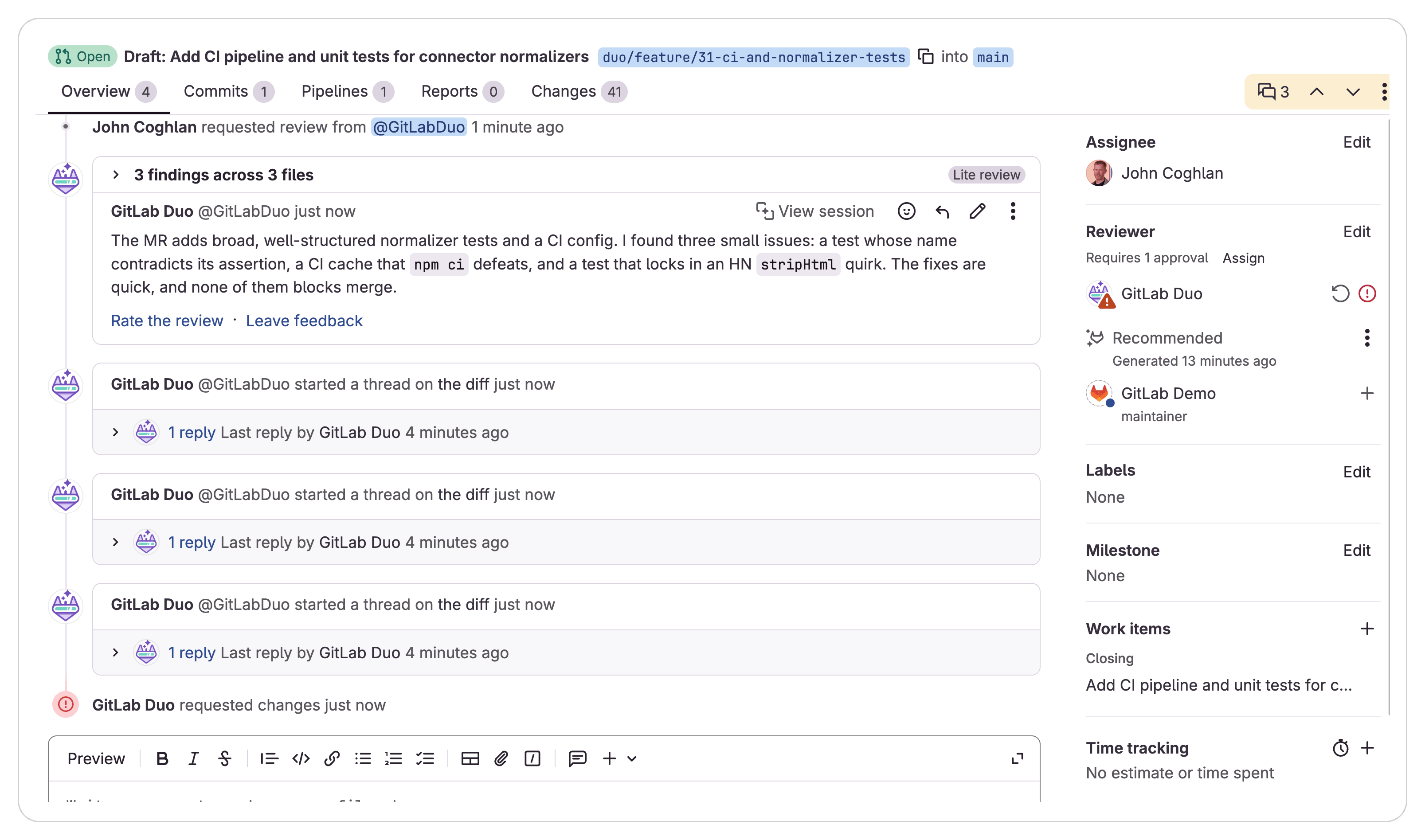
When you or your agent creates an MR, GitLab Duo is added as a reviewer and runs a two-stage review: a pre-scan that pulls related files, tests and dependencies from the repo, then the review itself. It leaves inline threads with specific, actionable findings plus a summary.
With the beta approvals setting (also on the project's Merge requests settings page) turned on, GitLab Duo approves the MR when it finds nothing or requests changes when it does.
Tune it for your repo
Two files let you shape reviews without touching settings: mr-review-instructions.yaml for custom review instructions (focus areas, standards, per-path rules) and .gitlab/duo/mr-review-automated-rules.yaml to exclude MRs by target branch, source branch, or author, for example, bot-authored dependency bumps. As you identify improvements, keep updating these instructions to make reviews more efficient over time.
Work the feedback locally
Ask your agent:
Does MR 1 have feedback for me to review?
Claude Code reads Duo's Code Review threads through the MCP Server and summarizes them for you. You can ask it to follow through by fixing the ones it agrees with and reply in the threads to resolve them. Claude will make those changes locally, push them, and comment on each thread as the user. If you have the start a new review on push setting turned on, Duo will run another review to verify those changes. If a finding comes with a code suggestion, you can apply via MCP.
Long-running agentic work and verification stay on the merge request. Quick iteration stays in your local checkout.
Resolve a merge conflict
While a merge request waits for review, its target branch keeps moving. Eventually, this can lead to a conflict on your branch. You can clear it from Claude Code in two ways.
- Let Claude resolve it in your checkout:
MR 1 conflicts with its target branch. Resolve the conflict and get the pipeline green. - Or hand it over to Duo Developer on GitLab:
MR 1 has a merge conflict. Can you ask the Developer flow in GitLab to resolve it?
If you use Claude Code to resolve it, it will go through the conflict locally and use any preferences in your Agents.MD or skills to resolve it. If you use GitLab Duo Developer flow, you can leave it to work on it in the cloud and move on to your next task.
Use Case 3: Fix a failed pipeline with an automation
From the harness you can watch the merge request, while Duo Agent Platform can start the automated Fix CI/CD Pipeline flow when a job fails, with the same repo context and merge gates as any other change.
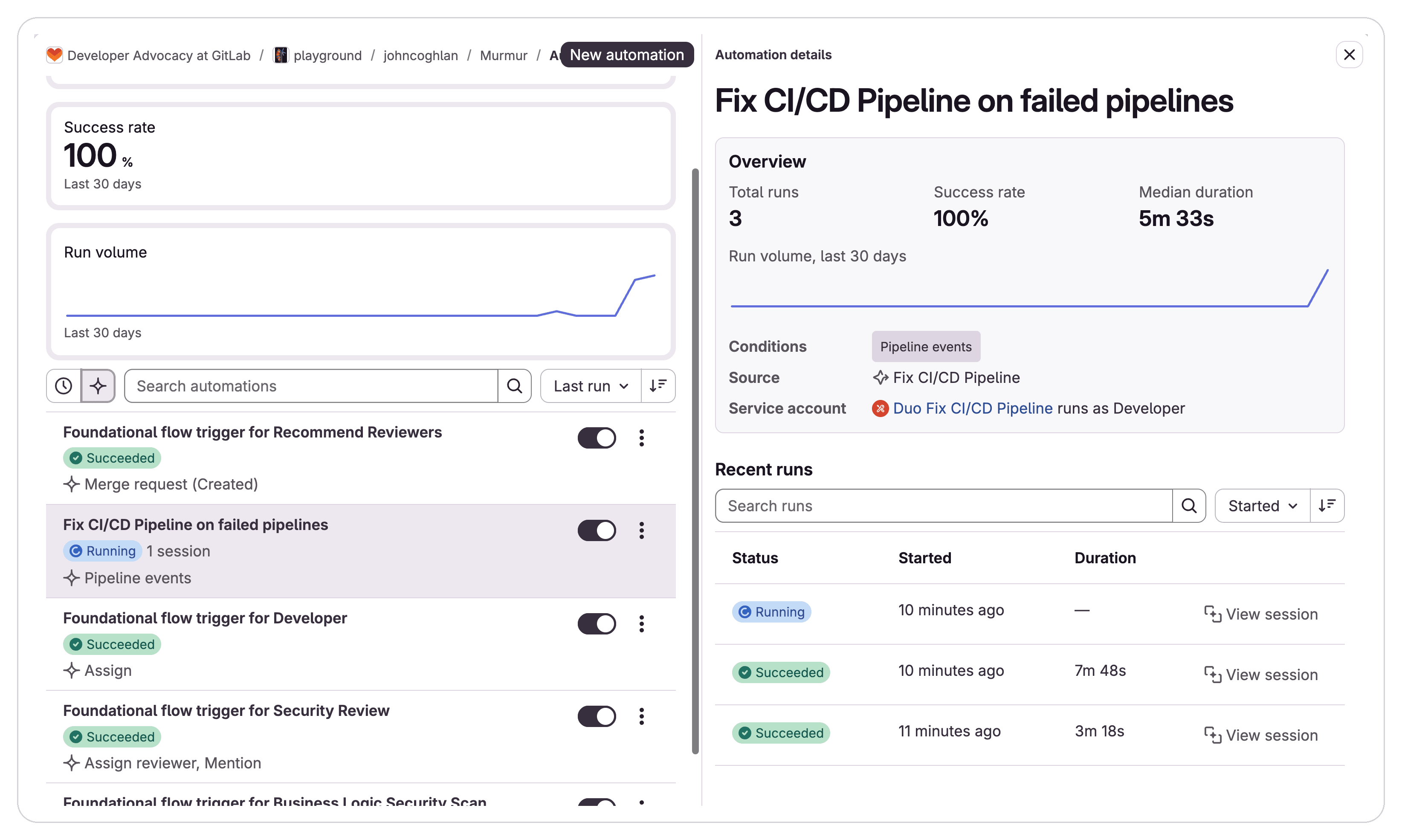
An automation watches for a failed pipeline and starts the Fix CI/CD Pipeline flow for you. By the time you notice the pipeline failure, a fix is usually already waiting.
Check the automation
Automations live at AI > Automations in each project. If you ran the skill, the fixed pipeline automation will already be there, along with some other automations that come out of the box. To create one by hand (Maintainer or Owner):
- Select New automation and give it a name, for example Fix failed pipelines.
- Under Runs with, select Fix CI/CD Pipeline. (Developer is selected by default if it's enabled; change it.)
- Under Runs when, select Add trigger > On an event, choose Pipeline events, and under Run when select Failed.
- Select Add event, then Create.
What happens on a failure
When a pipeline fails, the flow starts a session. If the pipeline belongs to an open merge request, it posts a system note on the MR with a link to the session. It reads the job logs, the MR diff, and the repository, then:
- If the fix is inside the MR's diff, it applies inline code suggestions on the source branch. You review and apply them from the MR, or pull the branch and apply them locally.
- If the fix needs files outside the diff, or the pipeline has no open MR, it opens a new merge request with the change.
- If it can't determine a reliable fix, or the failure is security-sensitive, it posts a comment that describes the failure and next steps so you can decide how to proceed.
Make it fit your project
The flow reads AGENTS.md, so you can tell it how to format commit messages, which labels to put on MRs it opens, how to treat specific failure classes, and when to stop retrying the same fix. One known limit: The flow sees only the last 150 KiB of a job log, so noisy jobs may need a summary step at the end.
Close the loop from Claude Code
The flow leaves a system note and its suggestions on the MR, so start from the MR.
On MR 17, did Fix Pipeline create a new MR or leave suggestions? Show me the diff and the reasoning.
Decide whether to merge the MR or apply the suggestions. The MR followup skill can also help you take the MR all the way to merge and guide you through the process.
/gitlab-mr-followup Take MR 1 through to merge.
Use Case 4: Triage and fix security findings (Ultimate)
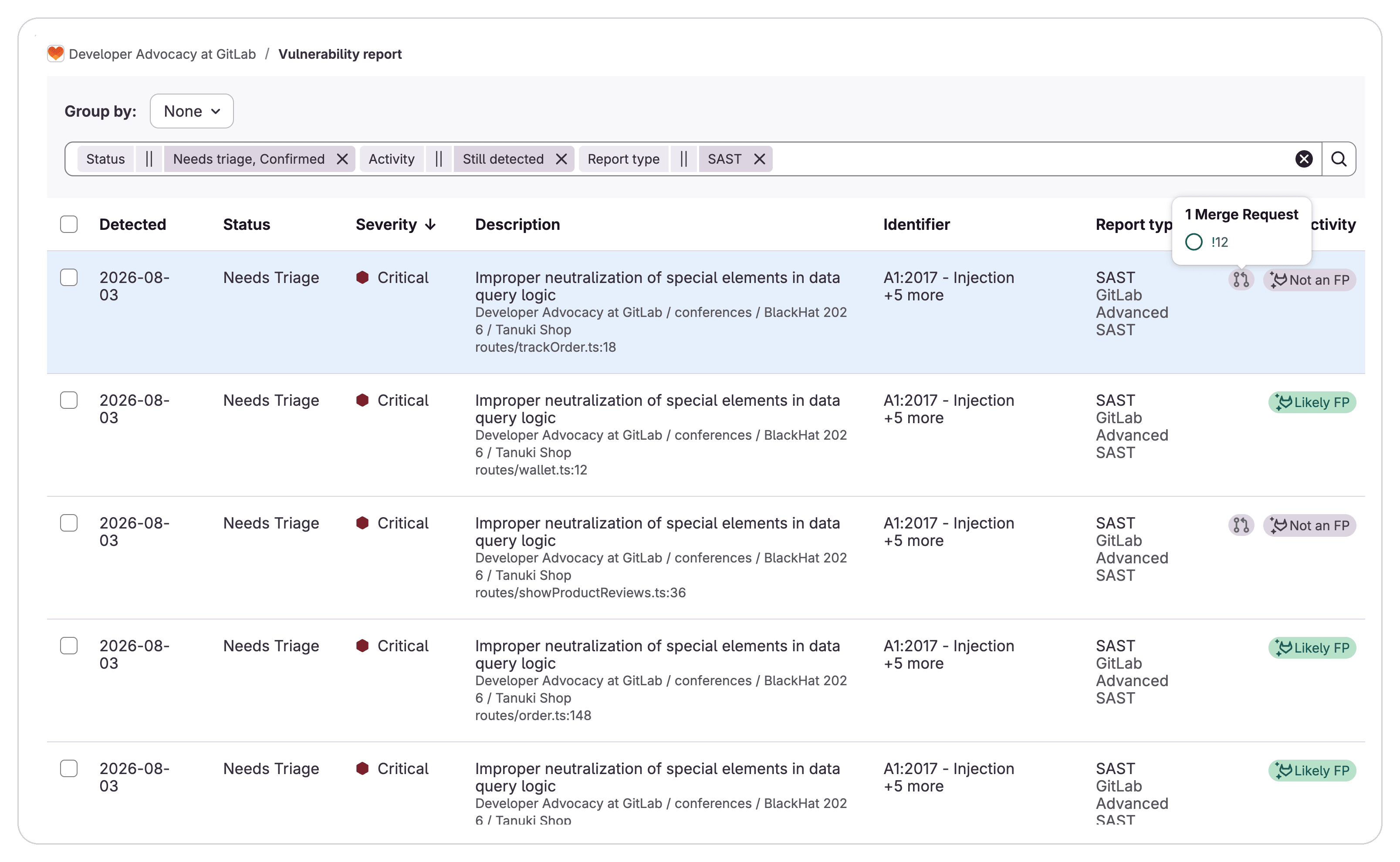
For GitLab Ultimate + Duo Agent Platform users, three out-of-the-box agents can also help eliminate security debt that builds up once code lands: Secret False Positive Detection, SAST False Positive Detection, and Resolve SAST Vulnerability. These security flows take findings from your scanners, score them for false positives, and open merge requests that fix the real ones. The flows work on findings from scans of your default branch (and other tracked branches), after code has merged.
Turn it on
If you said yes to the setup skill's security question, the skill then:
- Adds the SAST False Positive Detection, Secret Detection False Positive Detection, and Resolve SAST Vulnerability flows to the group, keeping every flow you already have.
- Applies the Secret Detection and SAST scan profile to projects that don't scan yet, without editing any
.gitlab-ci.yml. The scans run in merge request pipelines, so if your tests only run in branch pipelines, check that a failing test still blocks the merge request. - Enables the flows to run the Standard preset: triage and fixes run automatically after every scan, for Medium findings and above, with up to 15 open fix merge requests per project.
If anything in this step fails, the skill stops there and leaves the setup from Part 1 as it is. Credits scale with the number of findings, so if you'd rather see results and cost first, ask for the Conservative preset when the skill shows its plan: on demand, for High and Critical findings, with at most five open fix merge requests.
Automated resolution out-of-the-box
After turning these on, agents will flag SAST and Secrets false positives for you and generate merge requests to address SAST vulnerabilities automatically, reducing developer time spent on security and eliminating application security risk more efficiently. Expect triage and the first fix MR about 10 minutes after the scan finishes.
The Security Review flow and the Vulnerability Context flow can help you dig deeper into findings that aren’t automatically addressed.
Review before you merge
Treat the agent-created MRs like any other. You can use the Code Review flow on the fix MRs too. Security Review, which reviews merge request changes for business logic vulnerabilities, is also available. The skill mentions it but sets it up only if you ask, because it needs experiment and beta features turned on for the whole group.
Take your software factory to the next level
Advanced governance, flexible model deployment, and comprehensive lifecycle context ensure your automated software factory remains secure, adaptable, and fully informed.
Governance that applies to every merge request
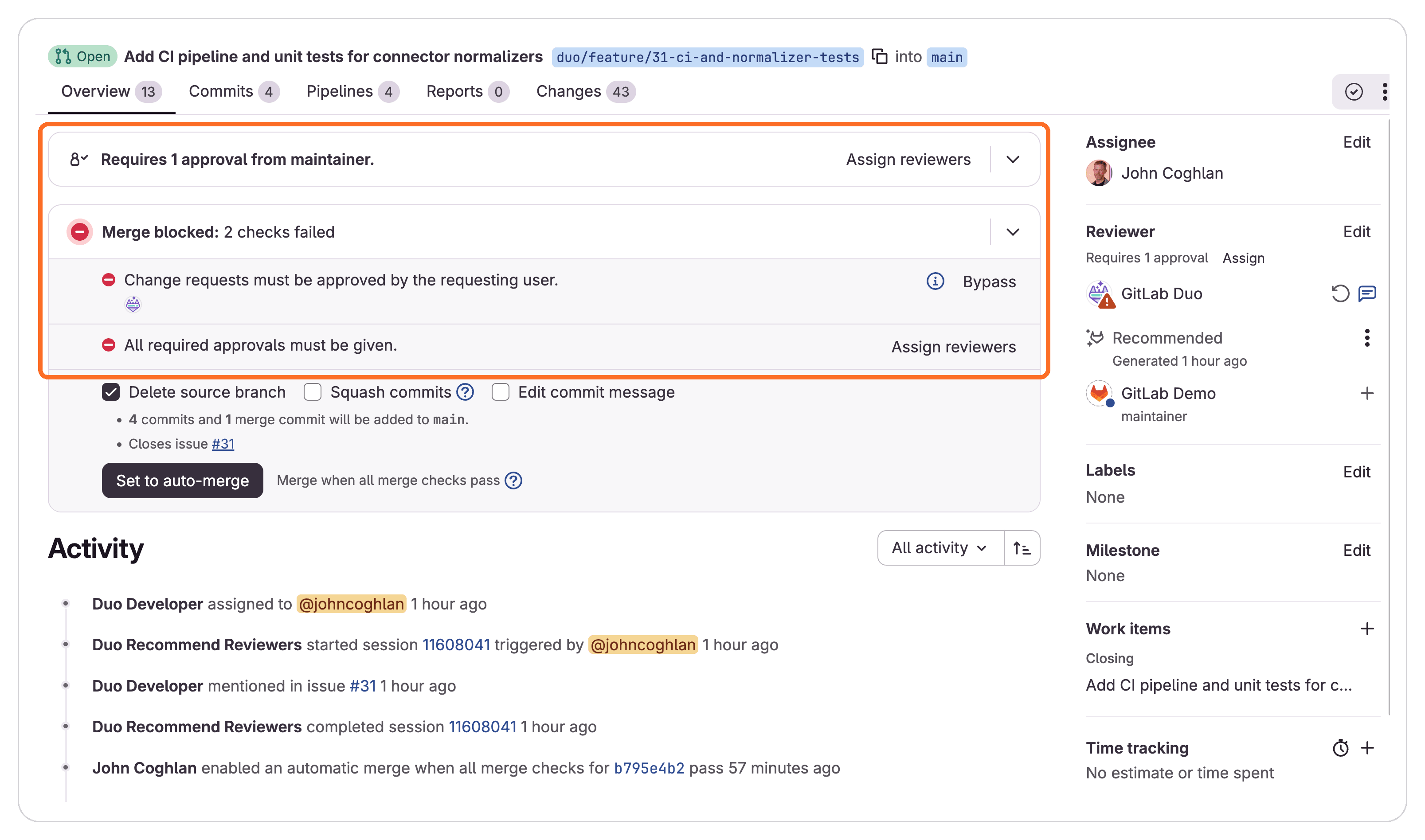
To ensure control and compliance as agents take on writing more code, it’s important to build guardrails that live alongside your code. With this integration, developers cut the handoff cost between the place they code and the place they ship, while building trust in their agentic workflows with consistent controls and evidence. In GitLab:
- Merge request approval policies apply organization-wide rules to every merge request.
- Pipeline execution policies make sure required jobs run, whatever a project's own pipeline configuration says.
- Composite identity ties every agent action to both the agent's service account and the person who started it, so the audit trail always shows who asked for what.
- Tool approval guardrails let administrators require a person's approval before an agent takes a sensitive action.
These controls already protect production for any enterprise that cares about security and governance. The same rules now cover agents, with no separate rulebook to maintain.
Model and cloud choice that stays under your control
The best model for a given job keeps changing. Teams should be able to take advantage of that without rebuilding how they ship software.
GitLab Duo Agent Platform is cloud-, agent-, and model-neutral. Group owners choose the model for each agent and flow, from Anthropic, OpenAI, Google, and open-weight providers, and can update it as new models arrive. On GitLab Self-Managed, GitLab Duo Self-Hosted runs models through Amazon Bedrock, Azure OpenAI, or the organization’s own infrastructure.
Whatever the model, the same approval policies, pipeline requirements, and audit trail apply to every merge request. Each organization picks the models that fit its needs, budget, and data rules, without tying how it ships software to one vendor’s roadmap.
Lifecycle context that cuts agent retries
An agent working one merge request sees only that merge request: the diff, the failing job log, and the review comments. It can't see that the same job fails in other projects. It can't see which services depend on the code it just changed, or who owns them. Without the full lifecycle picture, agents guess, then retry, then burn tokens on work that never ships.
GitLab Orbit, now generally available, is a context graph of the software lifecycle. It connects code, merge requests, work items, pipelines, vulnerabilities, and ownership, with your permissions intact. Agents get that context before they call a change safe to merge.
Developers and agents can also see which services, jobs, and environments a change touches across the group. In GitLab's internal testing, agents connected to Orbit needed up to 45x fewer retries while discovering an answer, and used up to 4.5x fewer tokens on the same tasks with the same model.
Claude Code, Codex, Cursor, and other MCP-compatible agents connect to Orbit through MCP or the GitLab CLI, so the context you build once serves every agent you add.
One governed path from code to production
With this integration, customers keep the coding harness their teams already use and enable GitLab Duo Agent Platform on the path to production. From the same terminal, they can hand issues into merge requests, get automated review on every MR, clear merge conflicts, let a failed pipeline start its own fix, and clear their security backlog. Every change still hits the same identity, policy, CI pipelines, security, approvals, and audit rules that their organization already trusts. That is the move from a shadow software factory to a governed software factory with the tools, models, and deployment path that fit how you work.
The GitLab Duo setup skill is how that connection starts. Install it in your harness, invoke it once, and review a single plan before anything changes. After you approve, the skill turns on Duo Agent Platform for your group, adds the Code Review, Fix CI/CD Pipeline, and Developer flows, creates the failed-pipeline automation where it is needed, connects the GitLab MCP server, and verifies the sign-in. It ends with a short report and links for anything left for you or your group Owner. From there, the four workflows in this guide run from the same terminal, and the MR followup skill is available when you want the loop even tighter.
New to GitLab Duo Agent Platform? Start a free trial. Already on Premium or Ultimate? Turn on Duo Agent Platform and use the GitLab Credits included with your subscription. Then clone the GitLab Duo setup skill, run it from the harness you already use, and take the first workflow for a spin on a real project.


