Well structured content helps everybody understand and navigate documents. When coded properly in the HTML, headings, lists, and landmarks help people who use screen readers (software that reads what’s on screen) both scan and navigate pages.
Visually, it is possible to scan a page to find the content you want. People browsing with a desktop screen reader or browsing with a mobile screen reader can do the same using keyboard commands and gestures for navigating between headings. This makes it possible for people to scan the content to find something of interest quickly. On the web, screen readers will also announce the level of each heading, helping people build up a mental map of content on the page.

Creating robust headings
Headings should introduce the content that follows so people can decide if they're in the right place or not, and in web content, headings should be sequential, so the different heading levels reflect the hierarchy of different sections of content.
- HTML
-
Use the
<h1>to<h6>elements to create a heading hierarchy - Android
-
Set the
android:accessibilityHeadingattribute totrueon the view that represents the heading - iOS
-
use
UIAccessibilityTraitHeaderto indicate the text is a heading
Example of HTML headings
In the following image shows headings on the TetraLogical services page with the headings highlighted using Accessibility Insights.
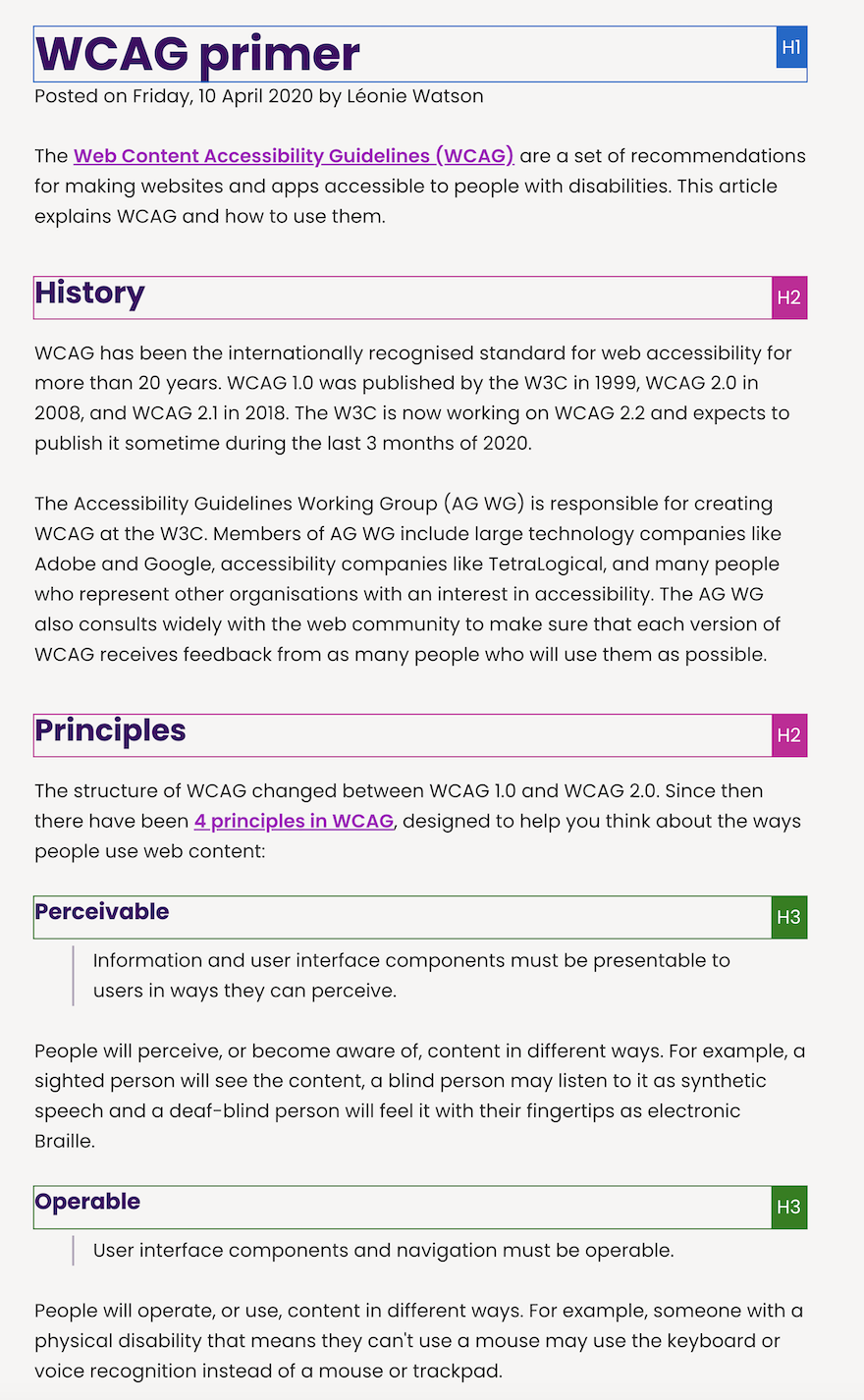
The coding for the headings is as follows:
<main>
<h1>WCAG primer</h1>

<p>The Web Content Accessibility Guidelines (WCAG) are...</p>

<h2>History</h2>

<p>WCAG has been the internationally recognised standard for web accessibility...</p>

<h2>Principles</h2>

<p>The structure of WCAG changed between WCAG 1.0 and WCAG 2.0...</p>

<h3>Perceivable</h3>

<p>People will perceive, or become aware of, content in different ways...</p>

<h3>Operable</h3>

<p>People will operate, or use, content in different ways...</p>

</main>
Tips for an effective heading structure
- Position the
<h1>immediately after the<main>element in the content order, this makes the start of the main content more discoverable for people using a screen reader - Think carefully about how many headings there are in a page, too many headings can make navigation cluttered, too few can make it harder to find the right section of content
- Consider the heading structure together with lists and landmark regions, these should all work together so every part of the page is discoverable
- Do not code headings on text just for visual effect, for example, on text that is a byline or subtitle
- Try and make the heading structure within a page consistent across the website or application where possible, for example, the
<h1>is always after the<main>element
Related standards
- WCAG 2.1 Success Criterion 1.3.1 Info and Relationships (Level A)
- WCAG 2.1 Success Criterion 2.4.6 Headings and Labels (Level AA)
More information
- Nomensa: How to use HTML headings
- MDN: HTML elements reference
- Apple: UIKit accessibility traits
- Google: Principles for improving Android app accessibility
Next steps
Read more accessibility foundations posts or sign up for Accessibility Unlocked, our free six-day newsletter series designed to help you kick-start accessibility.


