Text descriptions are primary content, and when images do not have a text description, anyone who cannot see the image will not know its purpose. This means people may be unable to access content or perform related tasks.
Appropriate text descriptions provide the following benefits:
- People browsing with a desktop screen reader or browsing with a mobile screen reader who cannot see the image can hear and understand its meaning or purpose
- People browsing with speech recognition can target image buttons and graphical links by including the text description in the voice command if the image doesn't load and the text description is visible
- People on slow networks where images don't load properly or who have them switched off can read the text description shown in place of the image in some browsers
- Search engines are better able to index images with text descriptions

Deciding the type of image
The first step is to decide what type of image it is then what kind of text description it needs.
Ask yourself:
- Does this image convey any information?
- If this image was removed:
- Would it affect the meaning of the content?
- Would it change the user's experience?
If your answer is "No, the image does not convey meaning", it is probably decorative and doesn't need a text description.
If your answer is "yes" in each case, then you may have one of the following types of image, all of which need text descriptions:
- Functional image
- Informative image
- Image of text
- Complex image
Decorative images
Decorative images are used to improve the visual appearance of the page. They don't convey any information or add to the user experience. Types of decorative images include:
- Visual styling (borders, spacers, corners)
- Images which are described by the surrounding text

Text descriptions for decorative images
Decorative images do not need text descriptions because they do not convey information or meaning. It is still important to handle decorative images in the right way though.
- HTML
- Use the
altattribute on the<img>element but do not give it a value:alt="". If a different approach is used to generate images, for example an icon font), applyaria-hidden="true"to the element used for the image. - Android
- Use the
android:contentDescriptionattribute on the image view, and set its value to@null - iOS
- Set the
isAccessibilityElementproperty on the image tofalseand do not provide a label
Images of text
Avoid images of text where possible because the visual quality of the text deteriorates for people browsing with screen magnification. If you have to use an image of text, the text description must contain the same words as the image itself.

Functional images
Functional images form part of interactive elements like links or buttons. The text description for a functional image should convey the intended action of the interactive element. For example, a button to start a new email might show an icon of a pen, but the text description should be "New email", not "Pen icon" because it's the button's action that's the important information.

Informative images
Informative images communicate information or add to the user experience in some way. Types of informative images include:
- Photos that show people, scenery or objects that add to the experience of the content
- Pictures of products and product variations
- Credit card symbols for payment options

Text descriptions for images of text, functional and informative images
- HTML
- Use the
altattribute on the<img>element to add the text description - Android
- Use the
android:contentDescriptionon the image view to add the text description - iOS
- Use the
accessibilityLabelattribute on the image to add the text description
Complex images
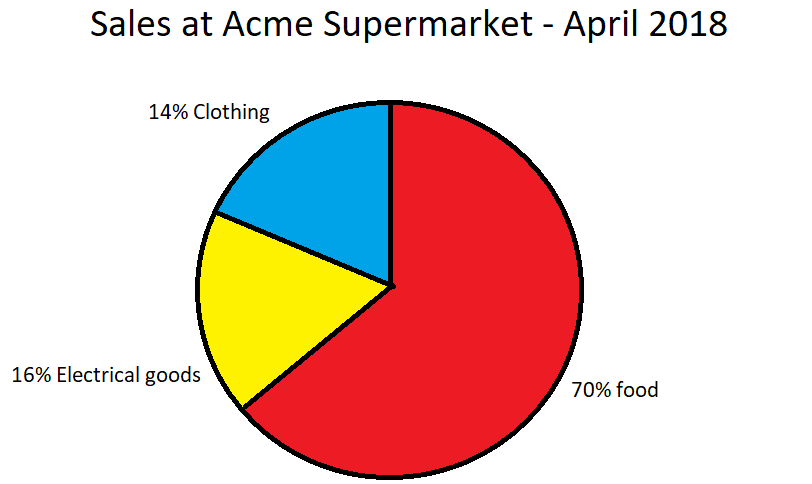
Complex images convey detailed, factual information like graphs and charts, illustrations and infographics. The text description must be accompanied by a more extended description or an alternative presentation of the image.
Text descriptions for complex images
- HTML
- Use the
altattribute on the<img>element to add a short text description; then either:- Use the
aria-describedbyattribute to point to an element on the same page that contains a longer description of the image - Use the
<details>and<summary>elements (with the<img>element inside the<summary>element) to create a disclosure component that reveals the longer description on request
- Use the
- Android
- Use the
android:contentDescriptionon the image view to add a long text description - iOS
- Use the
accessibilityLabelattribute on the image to add a long text description
Tips for writing effective text descriptions
Think about how you would describe the image to someone on the phone. Here are some other things to think about:
- Keep text descriptions short and to the point, no more than a few words is about right
- Think about the context of the image; the same image may have a different text description depending on how it's context of use
- Do not use phrases like "picture of…", "image of…" or "… graphic" because screen readers will know it's an image based on the
<img>element or the properties of the image in native apps - If it's relevant, use phrases like "Illustration of…", "Sketch of…" or "water colour painting of…" because they can help convey the style and nature of the image
Related standards
More information
- W3C Accessibility Tutorials: Image concepts
- Tink: Text descriptions and emotion rich images
- Tink: Thoughts on text descriptions and skin tone
- MDN: HTML elements reference
Next steps
Read more accessibility foundations posts or sign up for Accessibility Unlocked, our free six-day newsletter series designed to help you kick-start accessibility.


